Depending on your floorplan provider, you may be required to make regular loan repayments (curtailments), or repay the loan in full once the floorplanned stock has sold. The process for both these payments is the same in the Eclipse program.
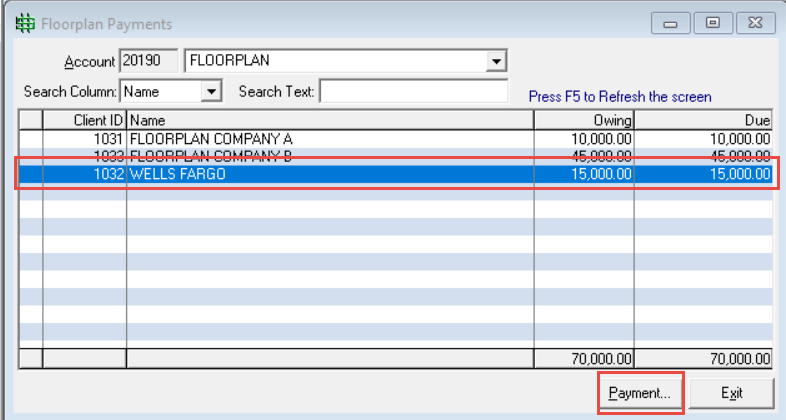
- In the Accounts Payable tab, click Floorplan Payments.

- Select the Floorplan Provider, then click Payment.
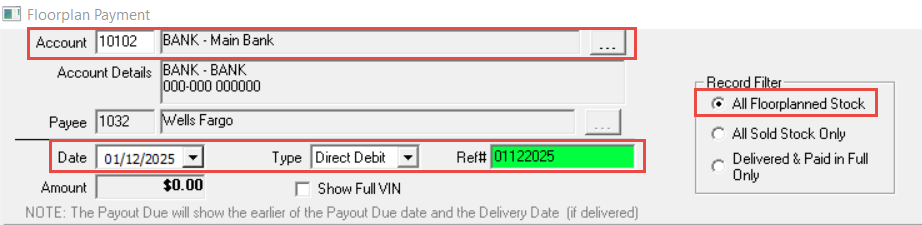
- Use the filter to show All Floorplanned Stock.
- Select the Bank Account you will be making the payment out of.
- Enter the Date of Payment, Payment Type, and a Payment Reference.
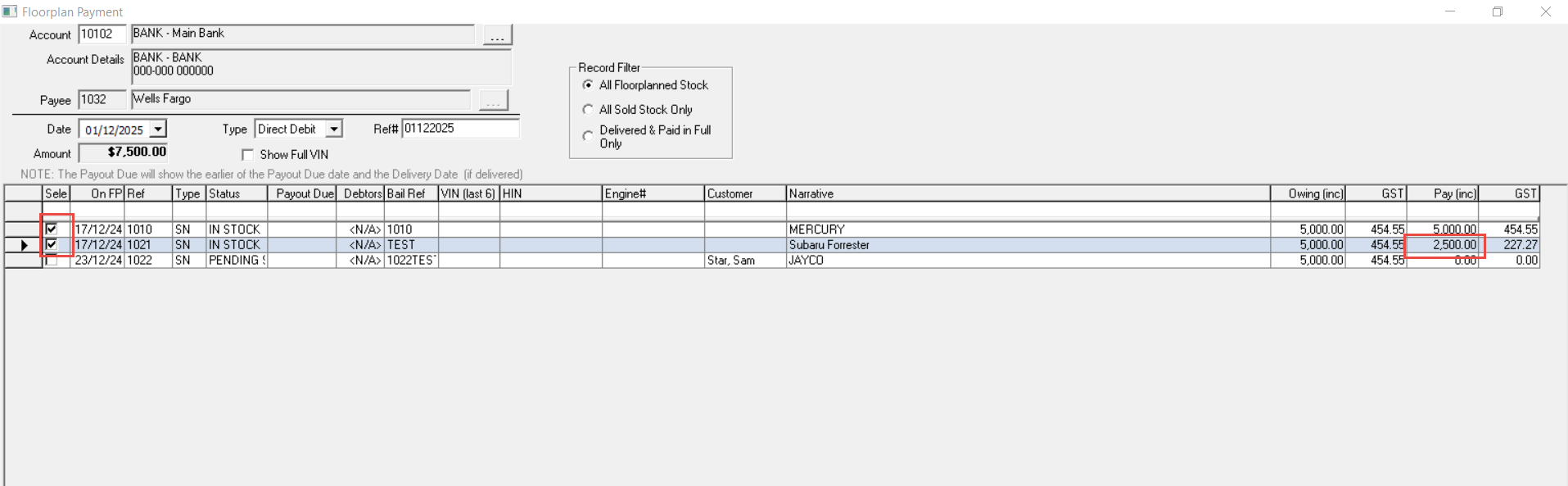
- Tick the left hand side box for the Stock that you are paying out.
- If you are only paying a portion of the owed amount, type in the Payment Amount in the Pay (inc) column.
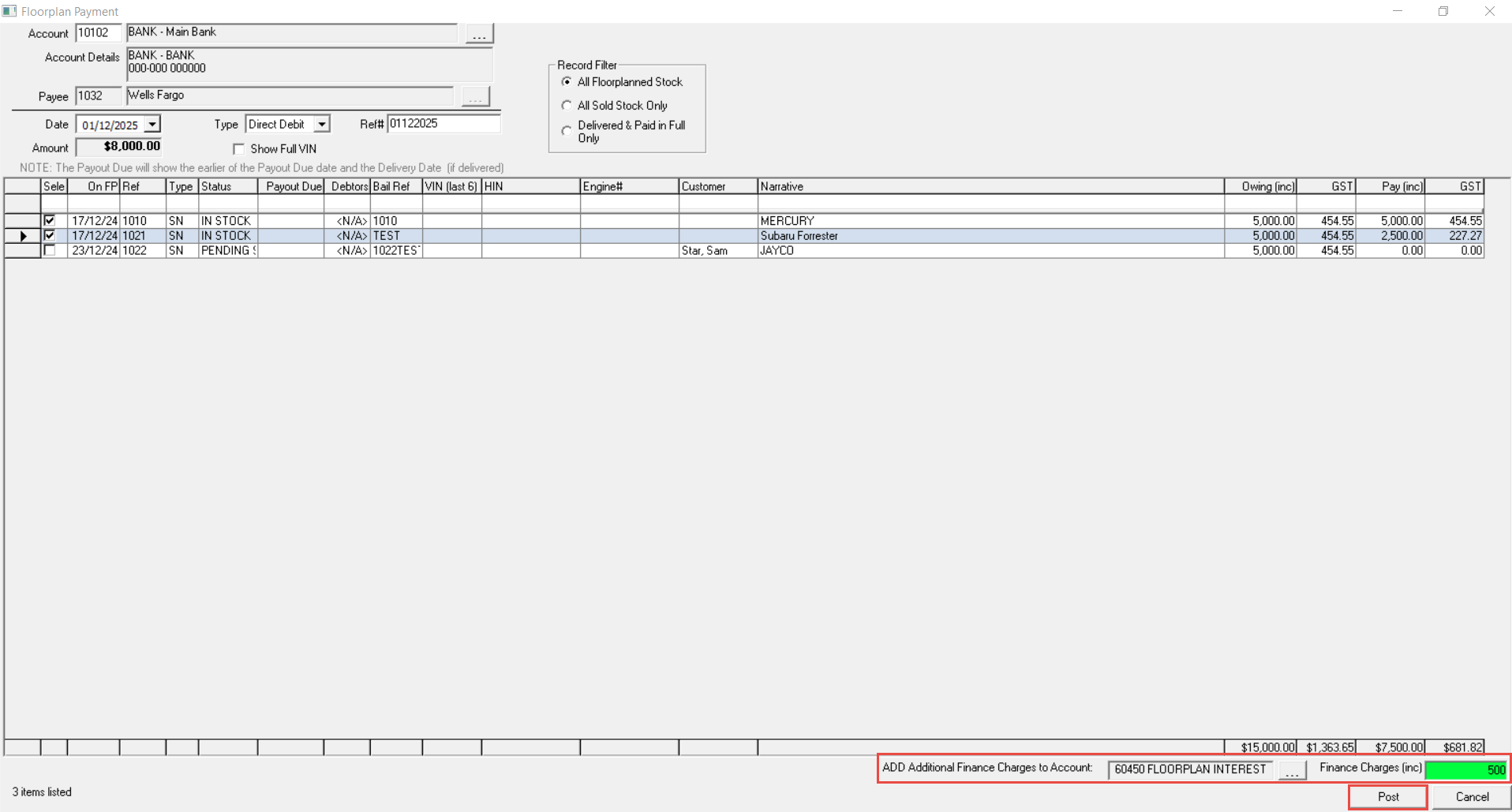
- If there are Additional Finance Charges to be paid, at the bottom of the screen select the appropriate GL Account, and enter the Additional Amount.
- Click Post to complete the payment.
Related Articles
How to process changing stock from Floorplan Company A to Floorplan Company B
How to add a new floorplan company
How to pay a deposit for a floorplanned stock
Was this article helpful?
That’s Great!
Thank you for your feedback
Sorry! We couldn't be helpful
Thank you for your feedback
Feedback sent
We appreciate your effort and will try to fix the article