At the end of each day, or at the start of the following day, you should complete your daily banking. This process ensures that any money received is applied to its relevant invoice.
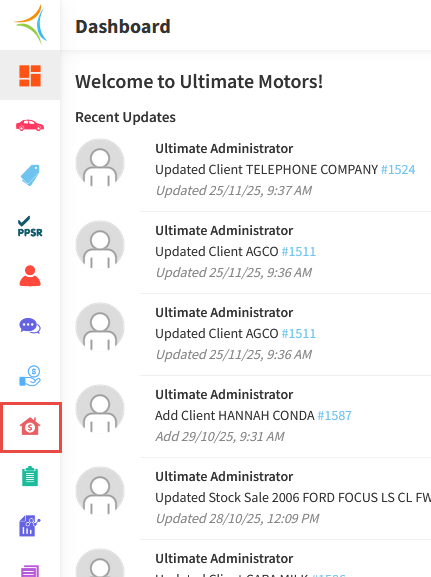
- From the Dashboard, hover over the Accounts Receivable icon.
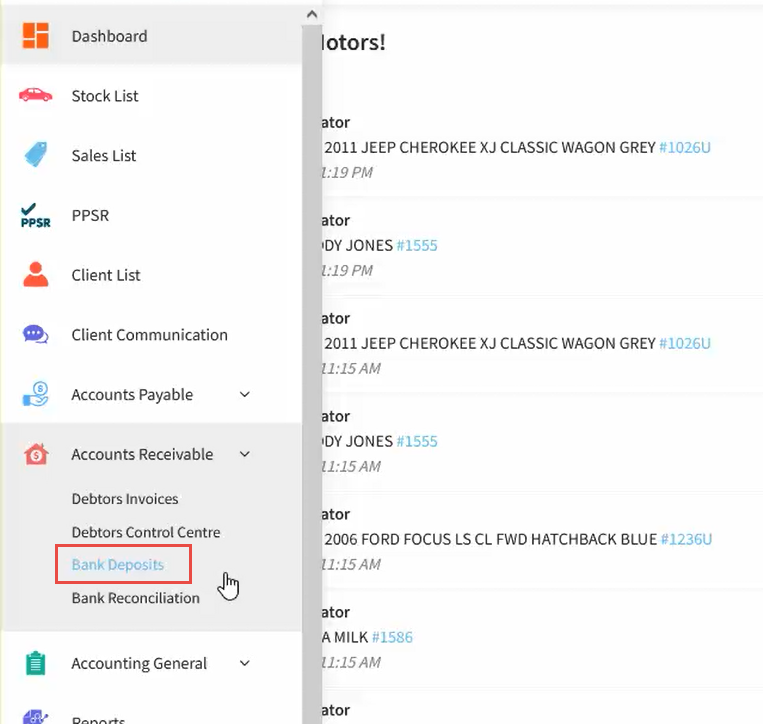
- Click Bank Deposits.
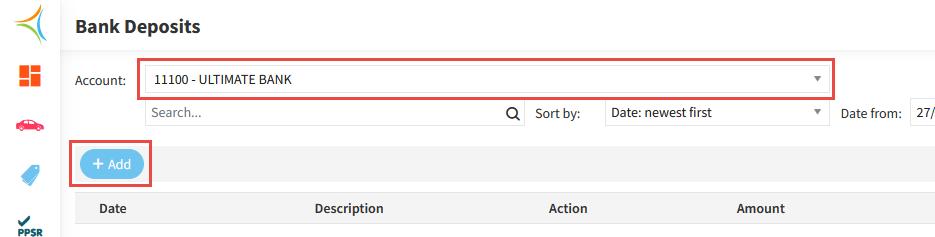
- Select your Bank Account, then click Add.
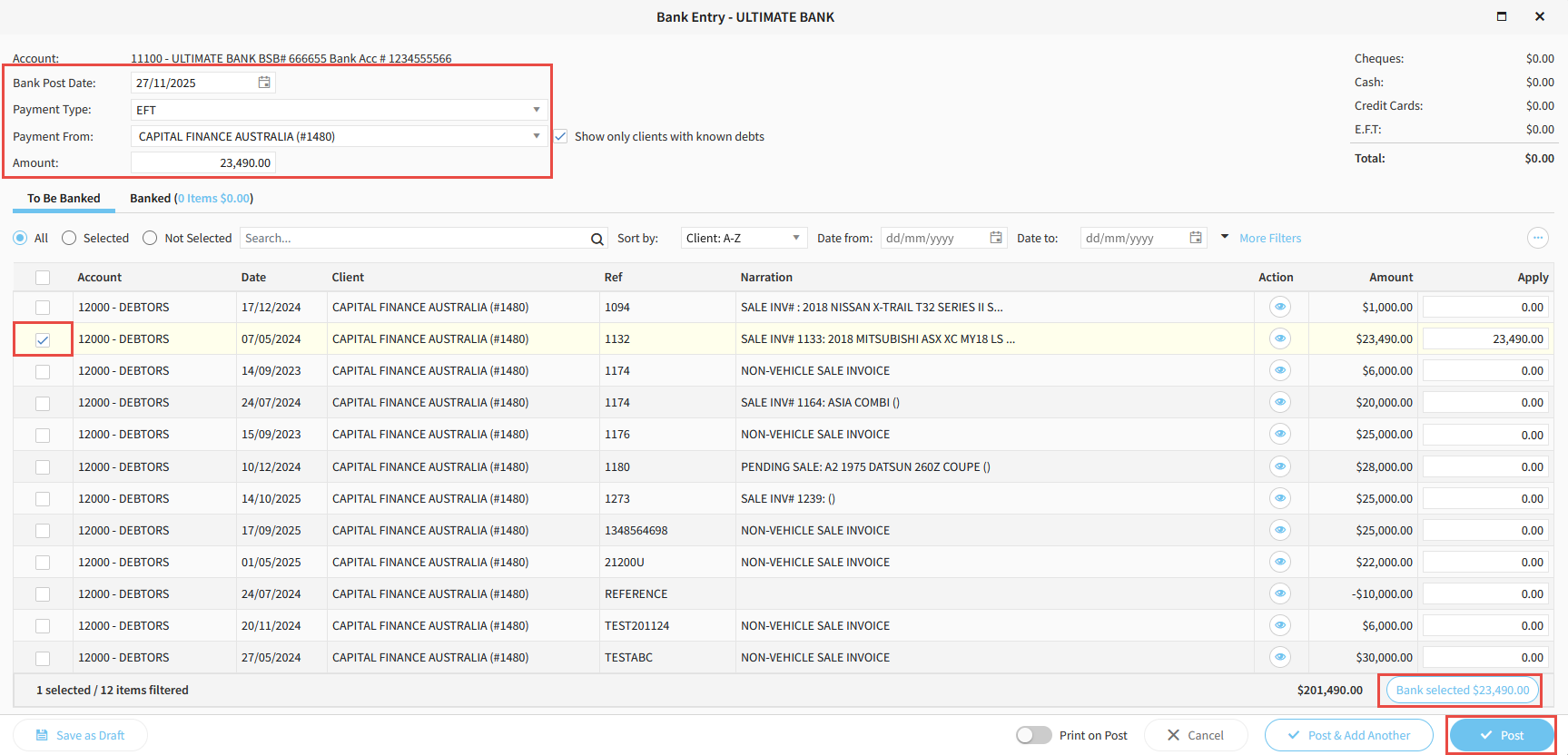
- Enter the Date that the money hit your bank account.
- Select the Payment Type as EFT.
- Select the Client, and enter the Amount received.
- Tick the corresponding Payment Line.
- Click Bank Selected, then Post.
Related Articles
How to create a debtors invoice in Aura
How to bank EFTPOS receipts in Aura
How to bank undeposited cash in Aura
Was this article helpful?
That’s Great!
Thank you for your feedback
Sorry! We couldn't be helpful
Thank you for your feedback
Feedback sent
We appreciate your effort and will try to fix the article