A creditors invoice will need to be added into Eclipse so that it can be paid. You should NOT create a creditors invoice for the purchase of a vehicle, as the system will do this for you when entering the stock.
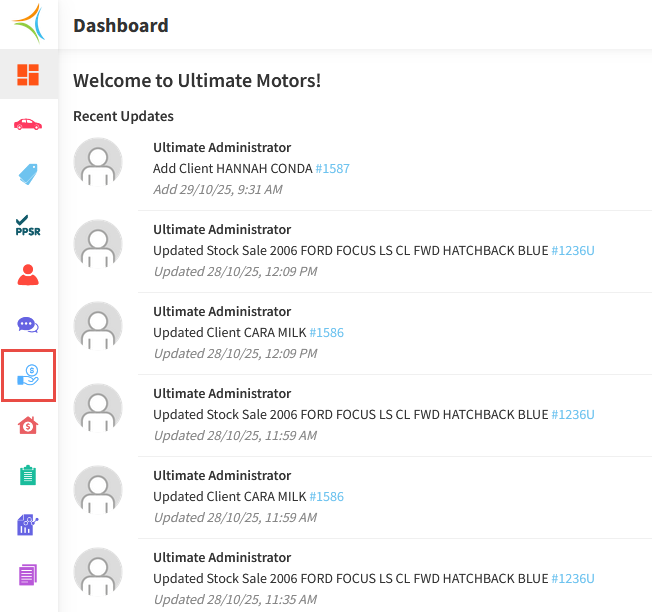
- From the Dashboard, hover over the Accounts Payable icon.
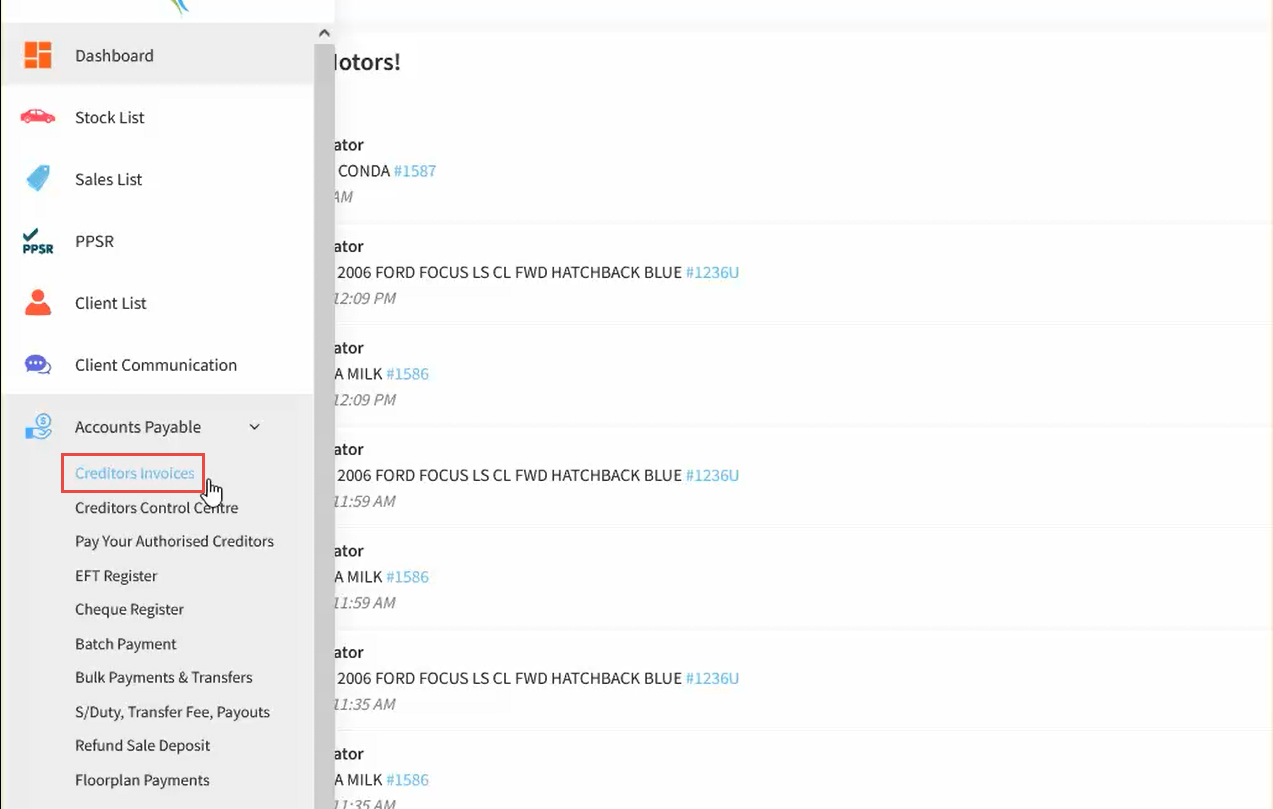
- Click Creditors Invoices.
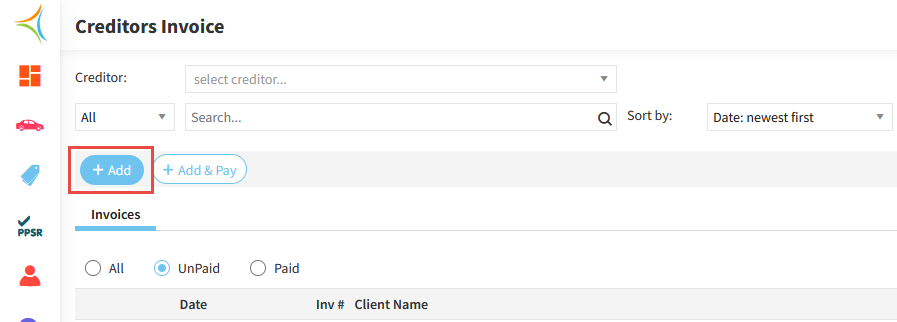
- Click Add.
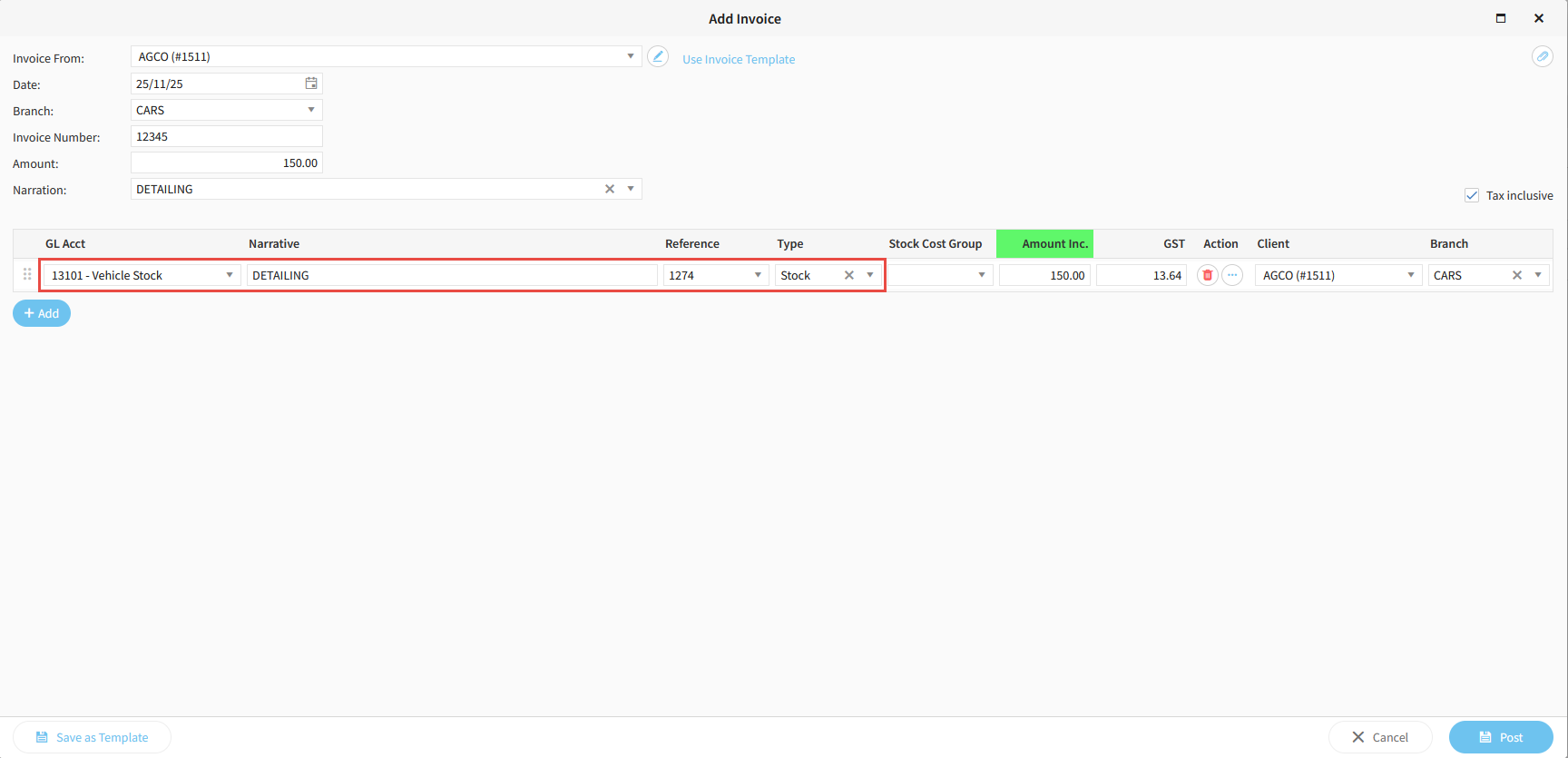
- Enter the Supplier in the Invoice From field.
- Enter the Invoice Date, Invoice Number, Amount, and a Narration.
- If the invoice is tax exclusive, untick the Tax Inclusive box on the right hand side.
- Enter the associated GL Account.
- Enter a Reference and a Reference Type.
- Tab across to pre-fill the Amount Column.
- Click Post.
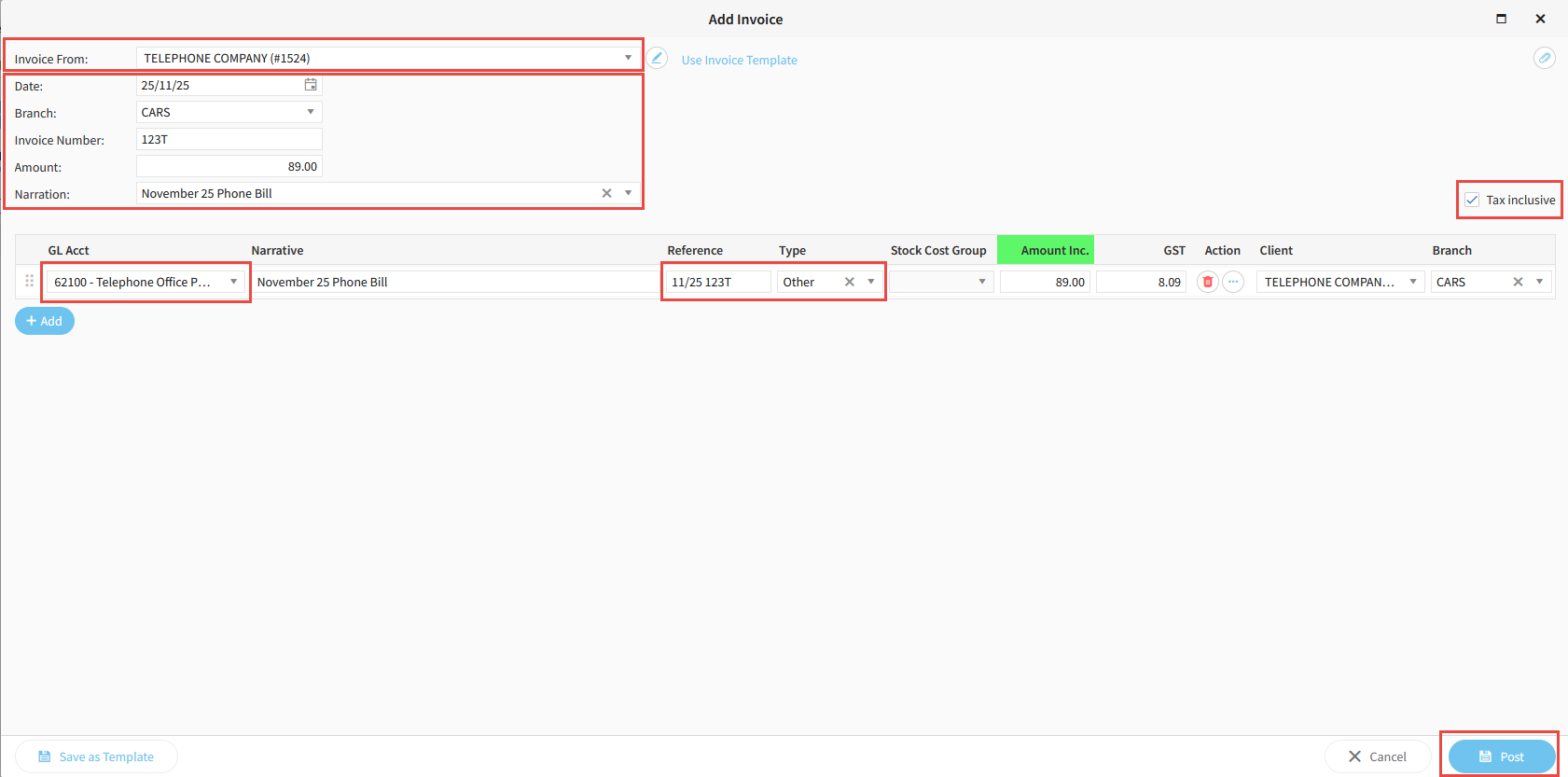
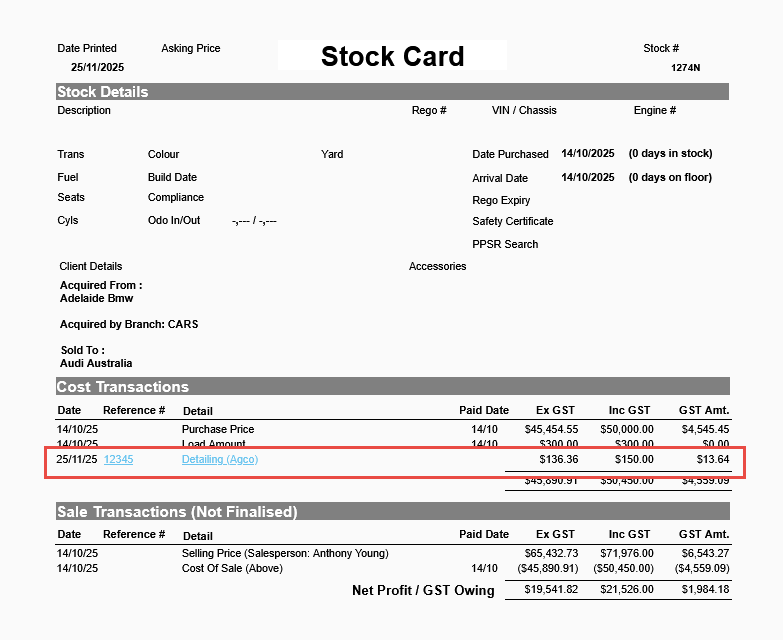
The above example shows how to create a general creditors expense, while the example below demonstrates how by changing the GL Account to the Stock Inventory account, the Reference to the Stock Number, and using the Reference Type of SN, you can link the invoice cost to a particular stock unit which will also display on the stock card.
Related Articles
Was this article helpful?
That’s Great!
Thank you for your feedback
Sorry! We couldn't be helpful
Thank you for your feedback
Feedback sent
We appreciate your effort and will try to fix the article